How to track your power outage with CenterPoint’s Outage Tracker (Texas map) CenterPointEnergy.com/OutageTracker
By: The Katy News Staff Writer
When the power goes out, CenterPoint Energy’s Outage Tracker is the primary self-serve tool for checking outage activity and restoration progress in your area. It’s designed to be mobile-friendly, provides estimated restoration times (when available), and is updated frequently.
-
Start with the correct tracker link (Texas)
If you’re in Texas, open the Texas outage map (. If you want to start from CenterPoint’s main entry point, useCenterPointEnergy.com/OutageTracker.
Tip: The link shared includes a location= parameter that encodes a saved map view (latitude/longitude/zoom). That means the map can open already centered on a particular area, which is useful for bookmarking or sharing a specific view.
-
Close the pop-up and review the safety banner
When the tracker loads, you may see a pop-up window with important information (including safety and restoration notes). Close it using the “X” in the top-right of the pop-up.
You may also see a red banner alert at the top of the tracker with safety information. The walkthrough notes you can expand it using “Details,” and close it with the “X.”
-
Use the top/side summary to understand the scale of the outage
On desktop, the tracker includes a sidebar; on mobile, similar summary information appears near the top. This area is intended to show high-level outage and restoration information, such as total outages and customers impacted.
Important: CenterPoint states the tracker pulls new data every five minutes. Your specific outage status might not change every refresh if there’s no new restoration information to post yet.
-
Find your neighborhood using the “Find a location” search
To zoom directly to your area, type your address into the tracker’s “Find a location” search bar (shown at the top center in the walkthrough).
If you can’t find your address, CenterPoint recommends double-checking spelling. If it still doesn’t appear, your home may be outside CenterPoint’s electric service territory.
-
Click outage pins/markers to view details (including restoration estimates)
Once you’re zoomed into your area, click nearby outage pins/markers to open the detail bubble/panel. The walkthrough indicates the details can include the estimated restoration time for the searched address and the number of customers impacted.
CenterPoint’s FAQ also notes that when you click the outage associated with your address, you’ll see an “Est. Restoration” field showing the estimated restoration time. If the estimate displays “Pending,” it means the outage is under review.
Note on precision: CenterPoint describes the tracker as providing approximate outage locations, not necessarily an exact address-level pinpoint.
-
Use the “Summary” tab for ZIP/county/city-level tracking
If you want a broader view (especially during widespread storms), use the tracker’s “Summary” tab. CenterPoint’s walkthrough says it allows you to view outage levels by ZIP code, county, or city.
This is useful when the map is crowded with many outages or you’re trying to compare multiple areas quickly.
-
Turn on map “Layers” for better context (satellite + weather)
The tracker includes a “Layers” tab with options to change the map view (for example, default street map to satellite view). The walkthrough notes this can help you understand vegetation density that may be affecting outages.
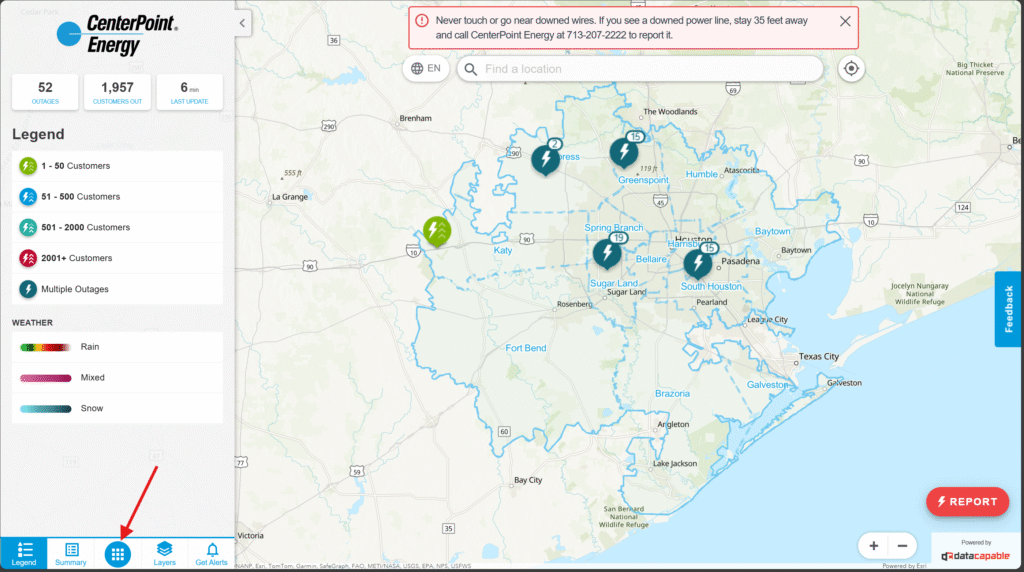
The tracker also supports a weather layer you can switch on/off to see how weather patterns may be impacting outages.
-
Get automatic notifications with Power Alert Service (recommended)
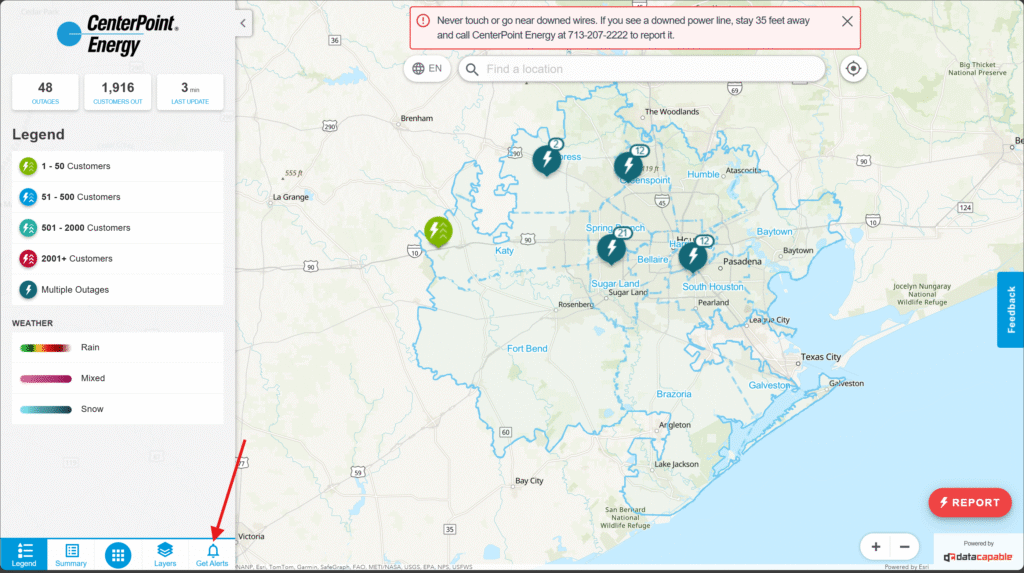
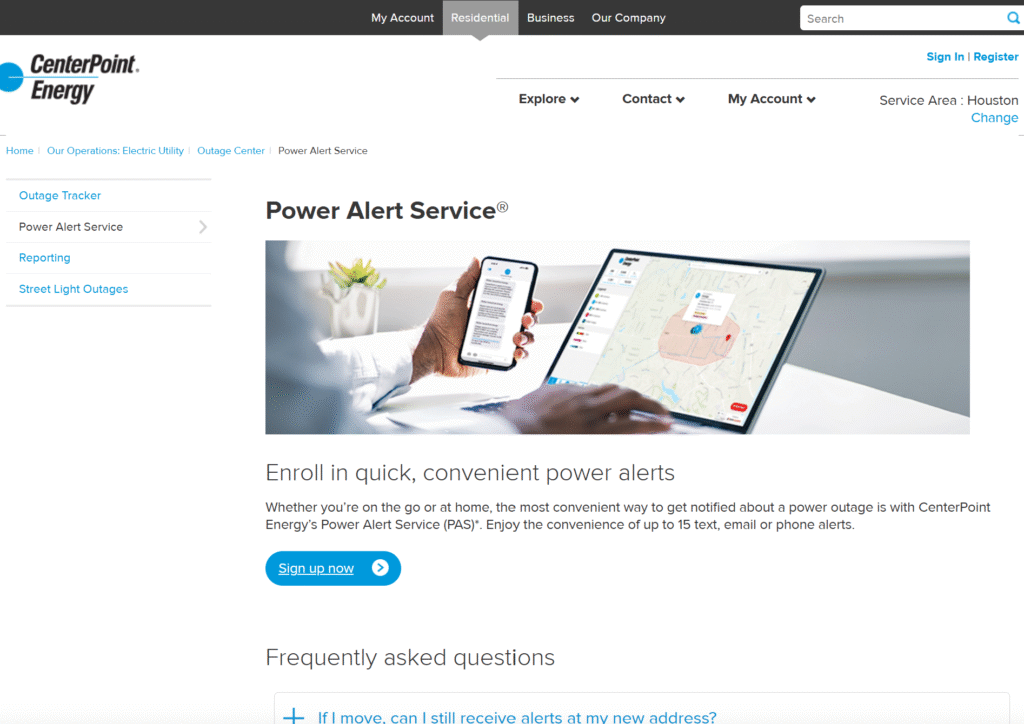
If you don’t want to keep refreshing the map, use the tracker’s “Get Alerts” button to sign up for CenterPoint’s Power Alert Service.
CenterPoint describes Power Alert Service as providing outage notifications by text, email, or phone call, plus restoration time estimates and confirmation when power is restored (standard carrier text fees may apply).
CenterPoint also notes you can add multiple contacts so others (spouse, caregivers, family) receive the same alerts, and you can add up to five texts, five emails, and five phone numbers.
-
Report an outage if needed (and understand what you’ll be asked)
If your power is out and you need to report it, the tracker includes a red “REPORT” button. CenterPoint’s tracker FAQ says reporting typically involves clicking “REPORT” and entering your phone number (or meter number) and your house number.
Before submitting an outage report, CenterPoint’s reporting site includes a caution: if a technician determines the issue was caused by customer-owned equipment (examples are a tripped breaker or blown fuse), CenterPoint may charge a fee (listed as $109) to your retail provider, and the retail provider may pass that charge on to you. It also advises checking your circuit breaker first.
-
If the tracker doesn’t show an outage but your home is dark
CenterPoint notes several reasons the tracker may not match what you’re experiencing:
• Customer-owned equipment problems (for example, weatherhead, meter-box, or a breaker that needs to be reset) can cause loss of power even if the tracker doesn’t show an outage.
• “Nested outages” can happen when systems indicate broader equipment in the area is restored, but a more localized issue still affects a smaller pocket (examples given include a damaged fuse, transformer problem, or a tree on the service line to a specific home).
-
Safety reminder for downed lines
If you see a downed power line, CenterPoint’s outage center guidance says to stay at least 35 feet away and call 911 and CenterPoint (numbers listed for the Houston-area outage center include 713-207-2222).
Practical “fast workflow” (what to do in under a minute)
Open the Texas tracker map → close the pop-up → search your address (“Find a location”) → click the nearest outage marker → check “Est. Restoration” and customer impact → enable alerts via “Get Alerts” if you want updates without refreshing → use “REPORT” if your outage isn’t listed and you’ve checked breakers first.
Related Articles

After the Storm: Is Your Security System Still Protecting You? – ioT Security
After the Storm: Is Your Security System Still Protecting You? Don’t Let Winter Weather Compromise Your…
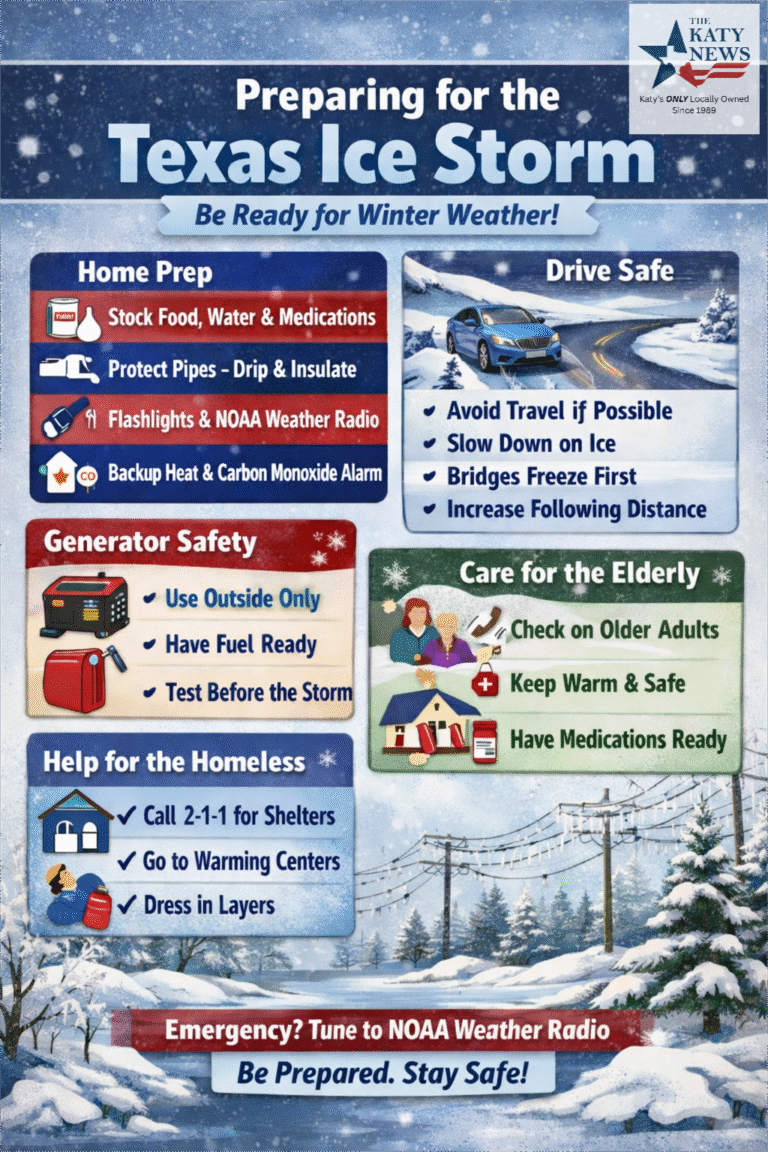
TEXAS ICE STORM PREP GUIDE (NOAA / NATIONAL WEATHER SERVICE)
[audio mp3="https://thekatynews.com/wp-content/uploads/2026/01/TEXAS_ICE_STORM_PREP_GUIDE__NOAA___NATIONAL_WEATHER_SERVICE__As_of_January_20__2026__NOAA_s_National.mp3"][/audio] TEXAS ICE STORM PREP GUIDE (NOAA / NATIONAL WEATHER SERVICE) As of January 20, 2026, NOAA’s…

CenterPoint Energy Meteorology and Operations teams actively monitoring Greater Houston and Texas weather the next few days
National Weather Service fire weather watch in effect for large portions of Texas Houston – March 13, 2025…
Katy ISD Extends Closure Due to Water Advisories
Story updated Saturday. By George Slaughter Ken Gregorski - Katy ISD photo Water advisories still in effect have…