Although the main function of Google Maps is to make it easier to find your way around, this tool also keeps track of all the places you’ve visited. All of this information is available by checking the “Google My Activity” page and viewing your location history.
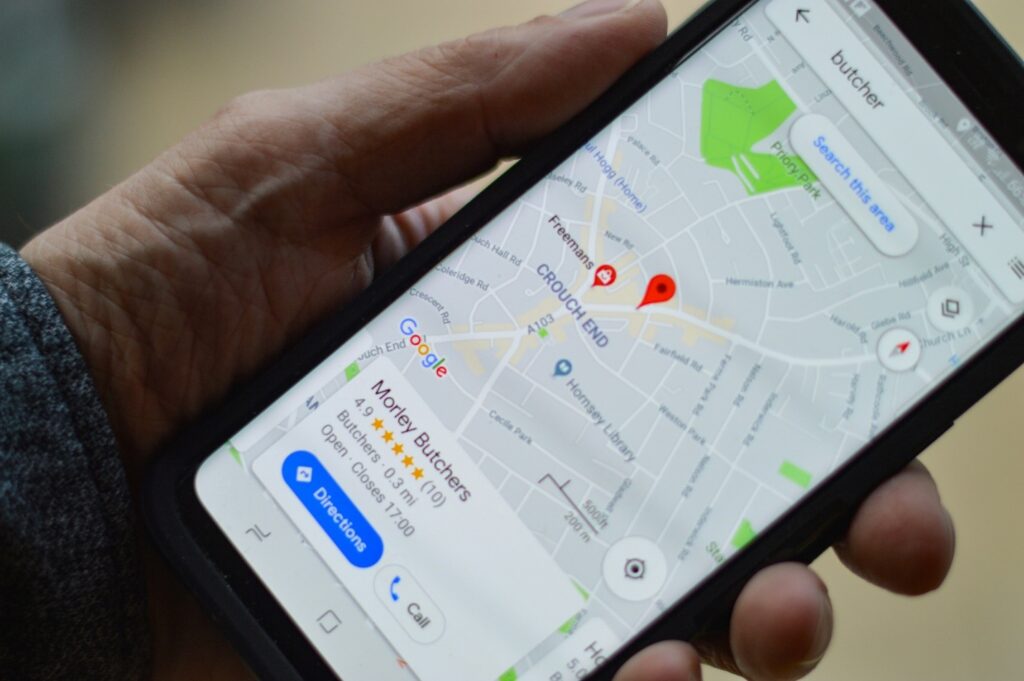
Access to this data can be useful for a number of reasons. In the continuation of this article, we’ll say something more about how you can manage the history of Google Maps in a useful way and how to use all the data that the browsing history records in a great way.
How to Enable Recording of Browsing History within Google Maps
To unlock the many features offered by “Location History” in Google Maps, you first need to enable browsing history. Here’s how you can do it, depending on the platform you’re using.
On Windows
Visit “My Google Activity” in your desktop browser and sign in to your Google Account. Click on the “Location History” tab in the middle. Enable “Location History” by clicking “Turn On”. If it’s already enabled, it means that you’ve already activated it before.
Click “Turn On” again in the pop-up window. When you enable this option, Google Maps will track and save where you go with your device, even when you’re not using a specific Google service.
On smartphones
Open the Google Maps app and tap your profile picture in the search bar. Tap “Settings” among the many options displayed on the screen. Swipe down the page and select “Personal Content”. Tap the “Location History is turned off” option. If you use multiple Google Accounts on your device, select the one for which you want to turn on “Location History”. Finally, click on “Enable” on the next screen.
Now that you’ve turned on your Google Maps browsing history, you can use your browsing history data for the following four purposes.
- Checking the Places You’ve Visited
You can use “Location History” to access an overview of all your past trips. You’ll be able to quickly scroll through your timeline and see all the places you’ve been.
On Windows
On the “My Google Activity” page, click “Location History”, then click “Manage History” at the bottom of the page. Go to the “Timeline” section located in the upper left corner of the screen and enter the details: the year, month, and day you want to revisit. This will show the places you visited on that date as dots on the map. You’ll also be able to see more information about the places you’ve been at the bottom of the screen displayed as highlights.
If your goal is to remember a place you’ve previously visited, try to remember the month you were there. Set the date and you should find a place among the tabs at the bottom. If you click on a tab, Google will display the details of your date on that particular occasion. Scroll through the details on the left until you find the location in question. Click the three dots next to it and select the location details. This will open a new page in Google Maps with full details for that particular location. If you remember a stop you made during your trip that Google failed to record, click “Add Place”.
On smartphones
In the Google Maps app, click your profile picture in the upper right corner and select “Your Timeline” from the menu. Switch to “Places” to see all the locations you’ve visited in the past. They’ll appear on the map and you can zoom in on them.
Unlike the Windows version, places are also displayed by category, such as places to shop, attractions, etc., making it easier to identify a particular place.
- An Overview of the Places You’ve Recently Traveled and the Trips You’ve Taken
By turning on location history on Google Maps, you can easily and accurately recall the last places you visited.
On Windows
In Google Maps, click the “Timeline” at the top. Click the red tab at the bottom. This way you’ll highlight the places you have visited. More information will become available to you. On the right, you can see your most visited places. On the left, check “All Places You’ve Been”, which first displays the places you’ve visited most recently. Clicking on one of these places will take you directly to its location on the map.
You can also take a walk down memory lane and review your past trips by clicking “More Trips”. Select the month during which the trip took place, then select a specific one from the tabs at the bottom. Every day you can track where you are, check the sights you’ve visited, and much more.
On smartphones
On the timeline in Google Maps, go to “Places”. Tap “Sort by” and select “Newest”. Swipe to the end and tap “Show all visited places”. The most recent places you’ve been will be at the top.
If you’ve been on a trip lately, you can switch to the “Trips” tab and double-check things like places visited, travel plans, and more details.
- Manage the Data of the Places You Have “Remembered” Within Google Maps
If you have previously saved places for later use, you can view them from “Google Timeline”.
On Windows
Click the gear-shaped settings icon located just above the timeline. Click “Manage your personal places”. You can see all the places you’ve visited and check your list of saved locations.
For example, if you need an idea of where to have your weekly readers club or find entertainment venues, such as casinos – this is in case you want to feel in person the hum of anticipation while playing at online casinos rated here as worthy of your money and that have the most alluring no deposit bonuses – check your favorites list for suggestions.
On smartphones
To view your saved listings on your mobile device, just tap “Save”d at the bottom of the Google Maps app.
From there, you can quickly access your timeline, as well as trips, places, and more.
- Travel Update via Email
As we know, Google Maps is a very good tool for navigation and for exploring new places. With “Location History” turned on, you can set up email updates so your recent trips are automatically documented.
On Windows
To set up email updates, click the gear-shaped settings icon above the timeline and select “Timeline Settings”.
Check the timeline email option in the pop-up window to receive an email with a summary of your recent travels. By checking the first option, you’ll be able to see all the photos and videos taken during a particular trip. Once you’ve made your selection, click “Save”.
On smartphones
On your smartphone, go back to the timeline and tap the three dots in the upper right corner.
Select “Settings and privacy”. Make sure the toggle next to emails in the timeline is enabled and if you want, enable the one next to “Google Photos”.